
AD70H - DVD player AKAI - Free user manual and instructions
Find the device manual for free AD70H AKAI in PDF.


| Product Type | DVD Player |
| Model | AD70H |
| Brand | AKAI |
| Power Supply | AC 100-240V, 50/60Hz |
| Power Consumption | 20W |
| TV System | PAL / NTSC |
| Laser Wavelength | 650nm, 780nm |
| Audio Frequency Range | DVD: 4Hz-22kHz (48kHz PCM), 4Hz-44kHz (96kHz PCM); CD: 4Hz-20kHz |
| Signal-to-Noise Ratio | ≥80dB |
| Audio Dynamic Range | ≥90dB |
| Video Output | 1.0V P-P, 75Ω |
| S-Video Output | (Y) 1.0V P-P, 75Ω; (C) 0.286V P-P, 75Ω |
| Analog Audio Output | 2.0V (rms) |
| Disc Compatibility | DVD, VCD, DVCD, CD, DVD+R/RW, DVD-R/RW, MP3, MPEG4, Kodak Picture CD |
| Built-in Decoders | Dolby AC-3, MPEG, PCM |
| Audio Digital Processor | 96kHz/24bit |
| USB Port | Yes, front panel |
| Video Outputs | HDMI, Component, SCART, S-Video, Composite |
| Digital Audio Output | Coaxial |
| Remote Control Batteries | 2 x AAA (1.5V) |
| Dimensions (Approx.) | 430 x 250 x 45 mm (W x D x H) |
| Weight (Approx.) | 2.5 kg |
Frequently Asked Questions - AD70H AKAI
User questions about AD70H AKAI
0 question about this device. Answer the ones you know or ask your own.
Ask a new question about this device
Download the instructions for your DVD player in PDF format for free! Find your manual AD70H - AKAI and take your electronic device back in hand. On this page are published all the documents necessary for the use of your device. AD70H by AKAI.
USER MANUAL AD70H AKAI
MANUAL DE INSTRUCTIUNI
AD 70H
CARACTERI STI CI
1 Disc tray door 6 Buton deschidere/inchidere
2 Afisaj 7 Buton redare/pauza
3 Slot USB 8 Buton stop
4 Buton stand by
PANOU POSTERIOR:
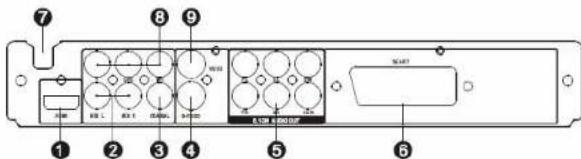
1 lesire HDMI 5 lesire audio 5.1
2 Iesire audio mixta L/R 6 Iesire SCART
3 Iesire audio digitala coaxiala 7 Cablu alimentare
4 Iesire S-VIDEO 8 Iesire componenta video
9 Iesire video
CONEXIUNI:
SISTEM CONEXIUNI VIDEO:
5.5. DEFAULT (IMPLICIT)
Restaureaza setarile implicite exceptand setarile controlului parental si PAGINA DE CONFIGURARE A PAROLEI.
OPERAREA TELECOMENZII
Introduceti doua baterii AAA/1,5V in telecomanda. Indreptati telecomanda catre senzorul telecomenzii de pe panoul frontal. Telecomanda functioneaza pana la o distanta de 8 metri de la senzor si pana la un unghi de 30 de grade de la stanga la dreapta.
INSTALAREA BATERIILOR
For your Attention....3
Accessories....4
Panel....5
Connections....6-7
System Setup....8-16
Remote Control....17-18
Remote Control Function....19-21
Basic Playback....22-23
Troubleshooting....24
Specifications....25
Features
Thanks for your purchase of our product. Please read through this manual before making connections and operating this product. Retain this manual for future reference.
DVD player is a domestic video player of new generation which produces high quality pictures and Hi-Fi audio effect. Its performance is much better than that of any previous home video equipment. As the best signal source, will give you the uppermost enjoyment!
● Built-in Dolby AC-3, MPEG, PCM etc. digital audio decoder.
● Hi-fi, 96kHz/24bit audio digital processor.
● Software intelligent upgrade.
● High-resolution component video output, support the future video equipment.
● Coaxial digital audio output
- USB slot
- Compatible with DVD, VCD, DVCD, CD, DVD+R/RW, DVD-R/RW, MP3, MPEG4, Kodak Picture CD, etc.
● High integrated servo system, decoding on single-chip technology, high reliability and stability, and super error-correction.
For Your Attention
IMPORTANT NOTES:
- Please read through this manual before making connections and operating this product. Retain this manual for future reference.
- Don't open the cabinet of this unit. No user-serviceable parts inside. Refer servicing to qualified personnel only.
- Switch off the unit when you don't use it. Switch off the unit and disconnect it from the AC power supply when it is not being used for a long time. Plug, as the disconnected device entirely with power source, should keep in easy-to-operation in daily life.
- Don't install the unit in a place exposed to heating sources, direct sunshine, moisture or rain.
● The apparatus shall not be exposed to dripping or splashing and any object filled with liquids, such as vases shall not be placed on it.
● Install the unit on a horizontal, flat and firm surface with good ventilation. Never block the vents, or it will cause malfunction resulting from overheating. - Use a soft and clean cloth to clean the outside of the unit. Never clean it with chemicals or detergent.
● This manual is only a guide for user's operation, not a criterion for configuration.
WARNING: The batteries shall not be exposed to excessive heat such as sunshine, fire or the like.
CAUTION: Danger of explosion if battery is incorrectly replaced. Replace only with the same or equivalent type.

The lightning flash is intended to alert the user to the presence of dangerous voltage within the product's enclosure, and touching the internal components may result in a risk of electric shock to persons.

The exclamation mark is intended to alert the user to the presence of important operating instructions.

To reduce the risk of electric shock or fire, do not open the cover. Refer servicing to qualified service personnel.
This mark indicates this unit belongs to class 1 laser product. The laser beam may produce radiation harm if in direct contact with the human body.
Accessories
Accessories
User manual

Remote control

A/V cable

playable Disc and Media Types:
| Disc types | Symbol Contents | |
| DVD |   | Audio + Video |
| MP3 |  | Audio |
| Video-CD (VCD) |  VIDEO CD VIDEO CD | Audio + Video |
| CD-DA |  DIGITAL AUDIO DIGITAL AUDIO | Audio |
| Picture CD |  | JPEG Photo CD |
| Kodak Picture CD |  | Electronic Photo |
| MPEG-4 |  | Audio + Video |
Panel
Front Panel:
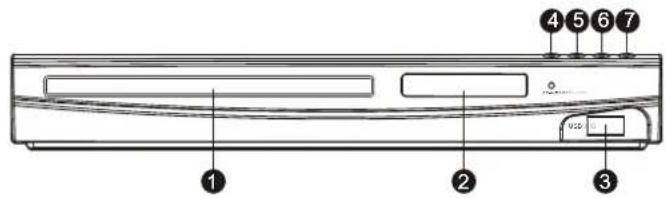
1 DISC TRAY
2 DISPLAY SCREEN
3 USB SLOT
4 STANDBY BUTTON
5 OPEN/CLOSE BUTTON
6 PLAY/PAUSE BUTTON
7 STOP BUTTON
Rear Panel:

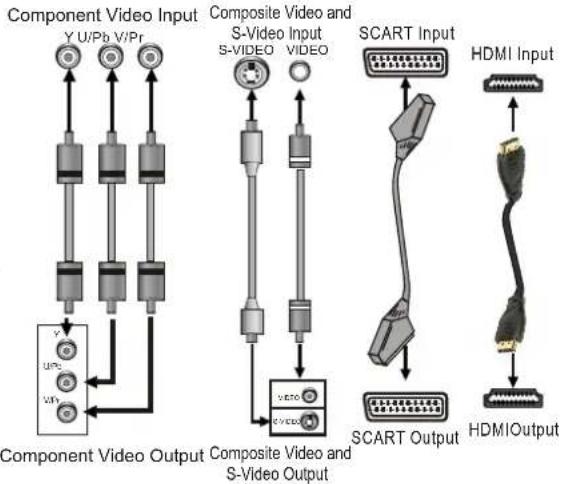
The following video outputs are available for this unit.
Composite Video
Use the yellow plug of an AV cable to connect the composite video output of this unit to the video input of a TV/monitor.
S-Video
Use an S-Video cable to connect the S-Video output of this unit to the S-Video input of a TV/monitor.
SCART
Use a 21_pin SCART cable to connect the SCART output of this unit to the TV/monitor SCART input.
Component Video
Use a 3-core AV cable to connect the component outputs of this unit to the corresponding inputs of a TV/monitor.
HDMI
HDMI can transmit both audio and video signals over a single cable. HDMI output presents the highest possible resolutions and video quality. If an HDMI input is present on your television, use it.
Use a HDMI cable to connect the HDMI output of this unit to the HDMI input of a TV/monitor.
Notes:
- Of the video output above, the HDMI is the best, component is the second best, SCART is better, S-Video is good and the composite video is standard. Use the best available video connection.
TV/Monitor Video Input
flowchart
graph TD
    A["Component Video Input"] --> B["Component Video Output"]
    B --> C["Composite Video and S-Video Output"]
    C --> D["SCART Input"]
    D --> E["HDMI Input"]
    C --> F["SCART Output"]
    F --> G["HDMIOutput"]
DVD Player Video Output
- Don't make all the connections above at one time, otherwise the produced pictures will be affected.
- Only when the video settings conform to the actual video system connections does the player produce the corresponding video output. (Please refer to the Video Setup in System Setup chapter).
Connections
There are two types of audio output systems. They are analog audio output system and digital audio output system.
Analog audio output system includes 2-channel stereo output and Dolby AC-3 5.1 channel output. Digital audio output system includes coaxial output.
Stereo Audio
Use a pair of audio cable (white for left, red for right) to connect the stereo audio outputs of this unit to the stereo inputs of a TV or a power amplifier.
5.1 CH Audio
Use 3 pairs of audio cables to connect the 5.1 CH audio outputs of this unit to the 5.1 channel inputs of external audio amplifiers or other players.
Coaxial Audio
Use a coaxial cable to connect the coaxial output of this unit to the coaxial input of a power amplifier.
TV/Monitor/Amplifier Audio Input
5.1 CH Audio Input

flowchart
graph TD
    R --> L
    L --> SN
    SN --> ENTER
    ENTER --> R
    R --> L
    L --> SN
    SN --> ENTER
    ENTER --> R
    R --> L
    L --> SN
    SN --> ENTER
    ENTER --> R
    R --> L
    L --> SN
    SN --> ENTER
2CH Audio Input

flowchart
graph TD
    A["L"] --> B["MIR L"]
    C["R"] --> D["MIR R"]
    B --> E["MIX L"]
    D --> F["MIX R"]
Digital Audio Input

5.1 CH Audio Output 2CH Audio Output Digital Audio Output
DVD Audio Output
Note:
The audio settings should conform to the practical audiosystem connections. Please refer to the Audio Setup in System Setup chapter.
System Setup
Menu Operation
- Press [SETUP] on the remote control to show the setup menu.
- Press [•]/[ ] to select an item. The submenu of the selected item will be displayed below instantly.
- Press [ʃ/[] to select an item you desire to set in the submenu, then press [ENTER]/[ ] to enter. Use [ ]/[] to select an option, then press [ENTER] to confirm it, or press-[] to cancel.
- Then you can press [↑]/[ ]to continue to set other items in the submenu.
- Press [→] to go back to the superior menu of the current one.
- Press [SETUP] again to exit the setup menu.
1 GENERAL SETUP PAGE
1.1 TV DISPLAY
If the unit is connected to a conventional TV set, select 4:3 PANSCAN or 4:3 LETTERBOX. The 4:3 image will be displayed in full screen in its native aspect ratio.
4:3 PANSCAN: The wide-screen image will be displayed on the screen in its native aspect ratio with some part on the left and right cut off.
4:3 LETTER BOX: The wide-screen image will be displayed in its native aspect ratio with black bands on the upper and lower sections of the screen.
If the unit is connected to a wide-screen TV set, select 16:9 or WIDE SQUEEZE.
16: 9: The wide-screen imagewill be displayed in full screen in its native aspect ratio while the 4:3 imagewill be stretched out horizontally to fit in the screen.
WIDE SQUEEZE: The wide-screen image will be displayed in full screen in its native aspect ratio and so does the 4:3 image but with black borders on the left and the right side.
1.2 ANGLE MARK
Set this item to ON. When a disc with multiple camera angles is playing, the angle mark will display on the screen. Then you can view the video of different camera angles by pressing [ANGLE] on the remote control. Set this item to OFF to disable this function.
NOTE: This function only works with those discs encoded with multiple camera angles.
System Setup
1.3 OSD LANGUAGE ( On-Screen Display Language)
Set the on-screen display language in this item.
1.4 CLOSED CAPTIONS
Set this item to ON to show the closed captions; Set it to OFF to hide it.
You can also press [SUBTITLE] on the remote control to show or hide the closed captions.
NOTE: This function only works with those discs encoded with closed captions.
1.5 SCREEN SAVER
ON: If the image remains motionless on the screen, for example the disc is paused, stopped etc, for several minutes, a screen saver will appear on the screen. You can press any key or total except [STANDBY] to up.
OFF: Disable the screen saver function.
1.6 HDCD(High Definition Compatible Digital)
HDCD (High Definition Compatible digital) is a patented encode/decode process for delivering the full richness and details of the sound from HDCD-encoded CDs. Set the digital filter to 2X, 1X or OFF in this item.
1.7 LAST MEMORY
ON: During a playback or in the paused status each time you open the disc tray or turn off the player, the unit will memorize the last playback time. Next time when you insert the same disc and close the disc tray to load the disc, the unit will play from the memorized point.
OFF: Disable the last memory function.
System Setup
2 AUDIO SETUP PAGE
2.1 ANALOG AUDIO SETUP
2.1.1 DOWNMIX
LT/RT: The 5.1-channel audio is mixed into left channel and right channel and is output via the FL and FR speaker respectively.
STEREO: The 5.1-channel audio is mixed into stereo signal and is output via the FL and FR speaker.
3D SURROUND: This mode creates a virtual surround effect from stereo or multi-channel audio contents.
5.1CH: Turn off the DOWNMIX mode. If a 5.1CHdisc is playing or the unitis connected to 5.1-channel amplifier, this item should be selected.
NOTE: This function only applies to the Dolby AC -3 encoded 5.1-channel discs.
2.1.2 FRONT, CENTER, REAR SPEAKER and SUBWOOFER
Only when the DOWNMIX mode is turned off (DOWNMIX is set to 5.1CH) are the CENTER SPEAKER and REAR SPEAKER activated. The FRONT SPEAKER can be set to LARGE or SMALL. The CENTER SPEAKER, REAR SPEAKER can be set to LARGE, SMALL or OFF and the SUBWOOFER can be set to ON or OFF.
NOTE:
If the speaker is set to LARGE, the output level will be higher than that of SMALL. If the speaker is set to SMALL, the output level will be lower than that of LARGE.
If a speaker is set to OFF, no audio is outputted from it.
2.1.3 DIALOG
When DOWNMIX is set to LT/RT or STEREO, this item is available.
Adjust the value of this item to control the dialog volume.
NOTE: When playing 5.1CH disc, this item can be used to adjust the volume of the speakers.
2.1.4 D.R.C
You can set this item to ON, OFF or AUTO.
2.2. DIGITAL AUDIO SETUP
2.2.1 DIGITAL OUTPUT
SPDIF/ OFF: There will be no digital audio signal output. (Coaxial off)
SPDIF/RAW: The digital audio signal output will be in its raw format.
SPDIF/PCM: The digital audio signal output will be in PCM format.
System Setup
2.2.2 LPCM OUTPUT
When DIGITAL OUTPUT is set to SPDIF/PCM, this item is available.
Select a sample rating for the digital audio output. There are two options, 48KHz and 96KHz.
NOTE: Some amplifiers don't support 96KHz sampling which will affect the coaxial output.
2.3 CHANNEL DELAY
This item is used to set the delay time for the center speaker, rear speakers and the subwoofer. The delay is to compensate for the audio propagation time difference caused by the distance difference of the speakers to the listener.
Use the direction key [ɪ]/[ ] to select the center speaker, subwoofer, left surround speaker or right surround speaker.
Then use the direction key [-]/[ ] to set the distance difference.

NOTE:
The unit does not support delays when the distance between the center or surround speakers and the listener are longer than that between the front speakers and the listener.
In case the channel delay settings cannot match your speaker configuration, please set all distance difference to 0cm. If possible, use your receiver/amplifier to set the channel delay.
System Setup
2.4 EQUALIZER
2.4.1 SOUND MODE
Select a sound mode, ROCK, POP, LIVE, DANCE, TECHNO, CLASSIC or SOFT, or select OFF to for no sound effect.
2.4.2 BASS BOOST
Set it to ON to boost the bass sound.
2.4.3 SUPER BASS
Set it to ON to get the super bass sound effect.
2.4.4 TREBLE BOOST
Set it to ON to boost the treble sound.
2.5 3D PROCESSING
2.5.1 PRO LOGIC II
Pro Logic II: This unit allows you to configure Dolby Pro Logic II to expand 2-channel source audio into full 5.1-channel surround sound.
NOTE: Pro Logic II functionality is available only when DOWNMIX is set to 5.1CH.
This item is used to turn on or off the Pro Logic II processing.
ON: Pro Logic II processing is always on
OFF: Pro Logic II processing is disabled
AUTO: Pro Logic II processing is on only when DolbyPro Logic II encoded content is detected.
2.5.1.2 MODE
This item is used to set the processing mode of Pro Logic II and is available only when the Pro Logic II processing is turned on.
MUSIC: Sound from all speakers arrive at the same time with no delay.
MOVIE: 10ms delay is added to the surround channels.
PRO LOGIC: Earlier version of Dolby Pro Logic processing.
AUTO: Automatically selects processing mode based on the input format.
System Setup
2.5.1.3 PANORAMA
This item is used to turn on/off panorama mode and is available only when MODE is set to MUSIC.
When panorama mode is turned on, the front stereo audio is partially fed into the surround channels for an enveloping effect.
2.5.1.4 DIMENSION
This item is available only when MODE is set to MUSIC.
This item allows gradual adjustment of the sound field either towards the front or towards the rear. This is useful in setting a more even balance from all speakers with some rooms.
2.5.1.5 CENTER WIDTH
This item is available only when MODE is set to MUSIC.
This item can be used to control the width of the center channel sound effect by blending the center speaker to the left and right speakers. As the level number increases, the center channel sound moves toward the left and right speakers.
2.5.2 REVERB MODE
Select a reverbmode, CONCERT, LIVING ROOM, HALL, BATHROOM, CAVE, ARENA or CHURCH in this item, or select OFF to switch off the reverb mode.
3 DOLBY DIGITAL SETUP
3.1 DUAL MONO
STEREO: The player outputs the left-channel audio and right-channel audio via the FL and FR speaker respectively.
L-MONO: The player outputs the left-channel audio only via both the FL and FR speaker.
R- MONO: The player outputs the right-channel audio only via both the FL and FR speaker.
MIX- MONO: The player outputs the average signal of the left-channel and right-channel audio via the FL speaker and the FR speaker.
NOTE: This function only applies to the Dolby AC -3 encoded 2-channel discs.
3.2 DYNAMIC
When you watch films with large dynamic scope in low volume, for example at night, you can adjust the dynamic value up to avoid losing sound details resulting from the low volume.
System Setup
4 VIDEO SETUP PAGE
4.1 VIDEO OUTPUT
OFF: Set video output to S-Video if the S-Video connection is made.
YUV: Set video output in analog component video format if the component video outputs are used.
RGB: Set video output in Red/Green/Blue format if the SCART output is used.
NOTE: ● If the composite video is your favorite, just make composite video connection only. The composite video output is always active whichever option you choose in this setting entry.
- If the video setting differs from the actual video connection (except composite video), you may get no image or very poor image on the TV. In such case, you need to reset this setting item for an appropriate video output mode or press [V-MODE] on the remote control until the output image becomes normal.
4.2 RESOLUTION
Select a resolution in this setting item.
4.3 COLOR SETTING
4.3.1 SHARPNESS
There are three options (HIGH, MEDIUM and LOW) for you to choose in this item.
4.3.2 BRIGHTNESS, CONTRAST, HUE and SATURATION
Enter these items respectively, use direction key [-/[] to adjust the value, then press [ENTER] to confirm it.
4.3.3 GAMMA
There are four options (HIGH, MEDIUM, LOW and NONE) for you to choose in this item.
4.3.4 LUMA DELAY
There are two options (0T and 1T) for you to choose in this item.
4.4 HDMI SETUP
About HDMI
HDMI (High-Definition Multimedia Interface) is the newest interface for audiovisual equipment such as high-definition television and home theater systems. With 19 wires wrapped in a single cable that resembles a USB wire, HDMI is able to carry a bandwidth of 5 Gbps (gigabits per second). This is more than twice the bandwidth needed to transmit multi-channel audio and video, future-proofing HDMI for some time to come. This and several other factors make HDMI much more desirable than its predecessors, component video, S-Video and composite video.
System Setup
HDMI is an uncompressed, all-digital signal, while the aforementioned interfaces are all analog. With an analog interface, a clean digital source is translated into less precise analog, sent to the television, then converted back to a digital signal to display on screen. At each translation, the digital signal loses integrity, resulting in some distortion of picture quality. HDMI preserves the source signal, eliminating analog conversion to deliver the sharpest, richest picture possible.
Though standard HDMI or "Type A" has 19 wires, "Type B" will have 29 wires. The latter is targeted for the motion picture industry and other professional applications. Both varieties are "Intelligent HDMI," referring to the built-in capability for HDMI-enabled components to talk to each other via the interface. Auxiliary information can provide all-in-one remote functionality and other interoperable features not possible in previous interface technologies.
HDMI supports standard video formats, enhanced video and high-definition. It is also backwards compatible with DVI (Digital Video Interface). High-end graphics cards featuring a DVI port can connect to a HDMI interface via a DVI/HDMI cable. This is simply a cable with a DVI connector on one end and a HDMI connector on the other. As a rule, HDMI cables should not run longer than 15 feet (5 meters), or degradation of the signal could occur.
4.4.1 HDMI
Set it to ON or OFF to enable/disable the HDMI connection.
5 PREFERENCE PAGE
If there's nodisc in the disc tray, the disc tray is open or the disc in the disc tray is stopped, this item is available.
5.1 TV TYPE
This product supports both NTSC (National Television System Committee) and PAL (Phase Alternating Line) television broadcasting standards.
PAL: If the connected TV is PAL system which is used in China, Hong Kong and Europe, etc, select this mode. The video signal of an NTSC disc will be output in PAL format.
AUTO: If the connected TV is multi system, select this mode. The output format of the video signal will be in accordance with the video signal of the disc.
NTSC: If the connected TV is NTSC system which is used in Taiwan, America, Canada, etc, select this mode. The video signal of a PAL disc will be output in NTSC format.
NOTE: If a wrong selection is made, the viewing image will be very poor. In such cases, you should change the option in this item to fix the error.
System Setup
5.2 AUDIO, SUBTITLE and DISC MENU
Select a preferred audio language, subtitle language and disc menu language in these items.
You can also make selection of the audio language by using the [AUDIO] and the subtitle language by the
[SUBTITLE] on the remote control.
NOTE: If the selected language is not available for the currently playing disc, the disc's default setting will remain enabled.
5.3 PARENTAL
This item allows the user to set a maximum rating of the movies that can be viewed. Movies rated higher than the level set forthe parental lock can not be viewed. What's more, to key in the correct password is needed to reset the level. The default password is 136900.
NOTE: This function only works with those discs with parental function.
5.4 PASSWORD
You can reset the password in this item. Enter to bring up a dialog box. Input the old password, then input a new password and again for confirmation. After you finish, press [ENTER] to change the password.
NOTE: The default password (136900) is always active even if the password has been reset.
5.5 DEFAULT
Enter to restore all the default settings except the settings in PARENTAL and PASSWORD item.
Remote control
Remote Control Operation
Insert two AAA/1.5V batteries into the remote control. Point the remote control at the remote sensor on the front panel. The remote control works within a distance of about 8 metres from the sensor and within an angle of about 30 degrees from the left and right side.
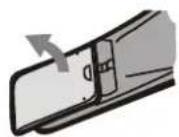
Battery Installation

Remove the battery compartment cover on the back of the remote control.

Load the batteries into the battery compartment making sure that the batteries have been inserted with the correct polarities matching the symbols +, - as indicated inside the battery compartment.

Replace the cover.


Note:
- Remove the batteries when you do not intend to use the remote control for a long time.
- Do not mix new and used batteries, or different types of batteries.
● Weak batteries can leak and severely damage the remote control.
● Batteries shall not be exposed to excessive heat such as sunshine, fire or the like.
● Be environmentally friendly and dispose of batteries according to your government regulations.
Remote control

1 STANDBY 18 OSD
2 DIGIT KEYS 19 DEFAULT
3 GOTO 20 V-MODE
4 PROGRAM 21 ANGLE
5 PBC 22 MUTE
6 SETUP 23 PLAY/PAUSE
7 VOLUME+/- 24 NEXT
8 FAST FORWARD 25 PREVIOUS
9 FAST REWIND 26 SUBTITLE
10 TITLE 27 ENTER
11 DIRECTION KEYS
(←→↑↓) 29 SLOW
12 AUDIO 30 RETURN
13 L/R/ST 31 ZOOM
14 STEP 32 STOP
15 USB 33 A-B REPEAT
16 REPEAT
17 OPEN/CLOSE
Remote Control Function
STANDBY

- Press to switch on the unit. Press it again to put the unit in standby mode. Note: Being in the standby mode uses a minimal amount of electricity, but ensures that the components of the unit operate at maximum efficiency from the moment you start.
DEFAULT

- When the disc tray is open or the disc is stopped, press to restore the default settings except the settings in PASSWORD item and PARENTAL item.
OPEN/CLOSE

●Press to open /close the disc tray.

●The digit keys can be used to input numbers or make selection of a track or a chapter, etc.

●Press to enter the selected item in the menu or to confirm and execute a selection.

●The direction keys can be used to move the highlight in the menu.

- Press to enter/exit the setup menu.
●During playback, press to enter the GOTO menu. In the menu, use the direction key[]/[I] to select a setting item and press [ENTER] to enter the editing state, then with the digit keys input a specific track, disc time, track time, chapter, title, chapter time or title time to go to directly. Press it again to exit the GOTO menu.
PROGRAM

●Press this button to enter/exit the program menu with which you can playback the contents of a disc in your desired order.
In the program menu, use the direction keys and digit keys to program a playback list, then move the highlight to 'START' and press[ENTER] to start program playback.
During program playback, press [PROG] to enter the program menu. Now, 'STOP' is highlighted. Press [ENTER] to cancel the current program playback.

- Press to temporarily pause a playback. Press it again to resume the playback. Or, press to resume the normal playback from the fast forward, fast reverse, frame-by-frame, slow-motion playback, etc.
Remote Control Function
| ●Press it once to pre-stop a playback. Press [H] to resume the playback from the pre-stopped status. Press it twice to stop a playback and the disc will be reset to the starting point. | |
| ●Press for fast forward playback. The available speeds are 2X, 4X, 8X, 16X and 32X. | |
| ●Press for fast reverse playback. The available speeds are 2X, 4X, 8X, 16X and 32X. | |
| ●Press to return to the previous chapter/track. | |
| ●Press to skip to the next chapter/track. | |
| STEP | ●Press repeatedly to advance the video frame by frame. (Applies to DVD, VCD, MPEG4 discs etc) |
| SLOW | ●Press repeatedly for slow-motion playback in different speeds. The available speeds are 1/2, 1/4, 1/8, 1/16 of the normal speed. (Note: Applies to DVD, VCD discs, etc.) |
| REPEAT | ●Press repeatedly to switch the repeat modes(Note: For VCD2.0, etc, this function is invalid when PBC function is activated.) |
| A-B | ●You can repeat a specific section of a disc with this button.During playback, press this button to mark down the starting point (A) and press it again to mark down the ending point (B). Then, the unit will playback this section (from A to B) over and over again. Press it for a third time to cancel A-B repeat and resume the normal playback.Note: Points A and B must be in the same title/ track. |
| ●Press this button to switch off the sound temporarily. Press it again to switch it on. | |
| TITLE | ●Press to enter the title menu of the playing DVD disc. |
| VOLUME+/- | ●Press [VOLUME+] to turn up the volume; press [VOLUME-] to turn down the volume. |
| MENU | ●Press to access the root menu of the disc. |
Remote Control Function

- Press to activate/ disable the PBC function.
When playing disc encoded with PBC function, press to display the PBC menu. Press it again to disable the PBC function.
(Note: This function only works with those discs encoded with PBC function such as VCD 2.0, etc. DVD, VCD1.1, CD-DA and MP3 discs have no PBC function.)

- Press to return to the upper disc menu.

- Press repeatedly to switch the subtitles or switch off the subtitle function.
(Note: This function only works with those discs encoded with subtitles.)

- Press repeatedly to switch or hide the relative information of the playing disc.

- Press repeatedly to select the available audio languages provided by the disc (for DVD).

- Press repeatedly to switch the available audio channels (LEFT MONO, RIGHT MONO, MIX-MONO and STEREO) provided by the disc (for VCD).

- Press to switch the viewing angles.
(Note: This function only works with those discs encoded with multiple camera angles.)

- Press to switch the video output modes.

- Press this button to zoom in/ out the scene. The available zoom ratios are 2X, 3X, 4X, 1/2 X, 1/3 X and 1/4 X. In zoomed-in mode, the direction keys can be used to move the zooming center. (Note: Applies to DVD, VCD, MPEG4 etc)
- Press repeatedly to switch to the available extra signal source USB, or to return to the DVD mode.

Basic Playback
USB DRIVE PLAYBACK
- Insert a USB drive into the USB slot. Press [USB] to enter the connected USB drive. Press it again to return to the DVD mode.
NOTE:
- In case the player breaks down when you insert a USB drive into the player, turn off the player, disconnect the power cord from the AC outlet and unplug the USB drive from the player. Then, power on the player again. The player will resume the normal status.
- If there is no disc in the disc tray, the player will switch to the corresponding mode automatically after you plug in a USB drive.
● For playback operation, please refer to MP3/MPEG4 DISC PLAYBACK in this chapter.
● During the playback of picture files, you need to press [MENU] or open the disc tray before switching between DVD mode, and USB mode.
MP3/MPEG4 DISC PLAYBACK
Insert an MP3/MPEG4 disc into the player; a content menu will display on the screen.
MENU OPERATION:
Use the direction key [t]/[ ] to select a folder or a file, then press [ENTER] to enter the selected folder or play the selected file. You can also use the digit keys to make selection of a folder to enter or a file to play.
In the content menu, press [←] to return to the upper menu; press [◀◀]/[▶▶] to return/proceed to the previous/next the menu page.
[PROG]: Press repeatedly to switch between FOLDER playback mode and FILELIST playback mode in the content menu.
[MENU]: During playback of an MPEG4 disc, press to return to the content menu.
NOTE: During playback, [◀], ▶], [▶], ■, [REPEAT], [A-B], [VOLUME+/-], [MUTE], etc. are valid. Please refer to the REMOTE CONTROL FUNCTION chapter for details.
Basic Playback
KODAK PICTURE CD PLAYBACK
- Place a kodak picture CD in the disc tray; the unit will load the disc automatically.
●Press [■] to enter the thumbnail mode to preview the pictures.
In the thumbnail mode, use the direction keys to select a picture, then press [ENTER] to start the playback from the selected picture.
In the thumbnail mode, use the direction keys and [ENTER] to make selection of the Slide Show, Menu, Prev or Next at the bottom of the screen.
Slide Show: Start slide show playback.
Menu: Enter the instruction menu for remote key function. In the menu, press[ENTER] to turnover to the next menu page and again to exit the instruction menu.
◀◀/▶◀: Turn over to the previous/next page.
●Remote key function introduction
[PROG]: Switch the transition effects.
[■]: Press to enter the thumbnail mode to preview the pictures.
[▶]: Press to pause a playback. Press it again to resume the playback
[▶]/[◀]: Skip to the next/ previous picture during playback.
[ZOOM]: During playback, press [ZOOM], then press▶ ]◀ ] to zoom in/out the picture. When the picture is zoomed in, the direction keys can be used to move the picture. Press [ZOOM] again to exit the zooming mode.
[1]/[ ]: Rotate the picture counterclockwise/ clockwise during the playback.
[]: Creates a vertical mirror image.
[ ]: Creates a horizontal mirror image.
Troubleshooting
Before resorting to maintenance service, please kindly check by yourself with the following chart.
| Symptom Cause(s) | Remedy | |
| No Power | ●The AC power cord is not connected to the power supply or is not connected to a power supply securely. | ●Please check that the AC power cord is connected securely. |
| PictureThere is no picture or the picture is distorted. | ●the video cable isn't connected securely.●video output mode of the unit isn't correctly set.●video input mode of the connected TV isn't correctly set. | ●Connect the video cable securely.●Press [V-MODE] repeatedly until the picture becomes normal again.●Set an appropriate video input mode. |
| SoundThere is no sound of the sound is distorted. | ●The audio cables aren't connected securely.●The volume is set to the minimum level.●The sound is switched off.●The disc is in fast forward/reverse playback. | ●Connect the audio cables securely.●Turn up the volume.●Press [MUTE] on the remote control to switch on the sound.●Press [PLAY/PAUSE]. |
| Unable to play a disc | ●This disc is placed in the disc tray in a wrong way●The rating of the disc is higher than the rate set in the parental control item.●The unit isn't compatible with the disc.●The disc is dirty. | ●Check that the disc is placed in the disc tray with its label side upwards.●Reset the settings in the parental control item.●/●Clean the disc. |
| The player breaks down when a USB drive is inserted into the player. | ●The connected USB drive is probably not a certified one. | ●The player cannot play any uncertified USB drive. In case the player breaks down, turn it off, disconnect the power cord from the AC outlet and unplug the USB drive from the player. Then,power on the player again. The player will resume the normal status. |
| The buttons on the unit doesn't work. | ●The unit is being interfered with static electricity etc. | ●Switch off and unplug the unit. Then connect the plug to the power supply and switch it on again. |
| The remote control does not function. | ●There is no battery in the remote control.●The batteries are out of charge.●The remote control isn't pointed to the remote sensor.●The remote control is out of its operating area.●The unit is shut down. | ●Install two AAA/1.5V batteries in it.●Replace the batteries with new ones.●Make sure that the remote control is pointed to the remote control sensor.●Make sure the remote control is within the operating area.●Switch off the unit and disconnect it from the AC outlet. Then power on the unit again |
Specifications
| Power supply | AC~100-240V/50-60Hz |
| Power consumption | 20W |
| TV system | PAL /NTSC |
| Laser wave length | 650nm, 780nm |
| Audio frequency range | DVD: 4Hz~22kHz 48kHz PCM)4Hz~44kHz 9 6kHz PCM)CD: 4Hz~20kHz |
| S/N ratio | ≥80dB |
| Audio dynamic range | ≥90dB |
| Operating conditions | Temperature: 0~40°C horizontally installed |
| Video output | 1.0V P-P 75, Ω |
| S-video output | (Y) 1.0V(P-P),75Ω( C ) 0.286V(P-P),75Ω |
| Audio output (analog audio) | 2.0V(rms) |

- MANUAL DE INSTRUCTIUNI
- PANOU POSTERIOR:
- CONEXIUNI:
- SISTEM CONEXIUNI VIDEO:
- DEFAULT (IMPLICIT)
- OPERAREA TELECOMENZII
- INSTALAREA BATERIILOR
- Features
- For Your Attention
- IMPORTANT NOTES:
- Accessories
- Panel
- Front Panel:
- Rear Panel:
- Composite Video
- S-Video
- SCART
- Component Video
- HDMI
- Notes:
- DVD Player Video Output
- Connections
- Stereo Audio
- CH Audio
- Coaxial Audio
- TV/Monitor/Amplifier Audio Input
- DVD Audio Output
- Note:
- System Setup
- Menu Operation
- GENERAL SETUP PAGE
- TV DISPLAY
- ANGLE MARK
- OSD LANGUAGE ( On-Screen Display Language)
- CLOSED CAPTIONS
- SCREEN SAVER
- HDCD(High Definition Compatible Digital)
- LAST MEMORY
- AUDIO SETUP PAGE
- ANALOG AUDIO SETUP
- DOWNMIX
- FRONT, CENTER, REAR SPEAKER and SUBWOOFER
- DIALOG
- D.R.C
- DIGITAL AUDIO SETUP
- DIGITAL OUTPUT
- LPCM OUTPUT
- CHANNEL DELAY
- EQUALIZER
- SOUND MODE
- BASS BOOST
- SUPER BASS
- TREBLE BOOST
- 3D PROCESSING
- PRO LOGIC II
- MODE
- PANORAMA
- DIMENSION
- CENTER WIDTH
- REVERB MODE
- DOLBY DIGITAL SETUP
- DUAL MONO
- DYNAMIC
- VIDEO SETUP PAGE
- VIDEO OUTPUT
- RESOLUTION
- COLOR SETTING
- SHARPNESS
- BRIGHTNESS, CONTRAST, HUE and SATURATION
- GAMMA
- LUMA DELAY
- HDMI SETUP
- HDMI
- PREFERENCE PAGE
- TV TYPE
- AUDIO, SUBTITLE and DISC MENU
- PARENTAL
- PASSWORD
- DEFAULT
- Remote control
- Remote Control Operation
- Battery Installation
- Remote Control Function
- STANDBY
- DEFAULT
- OPEN/CLOSE
- PROGRAM
- Basic Playback
- USB DRIVE PLAYBACK
- MP3/MPEG4 DISC PLAYBACK
- MENU OPERATION:
- KODAK PICTURE CD PLAYBACK
- Troubleshooting
- Specifications
Brand : AKAI
Model : AD70H
Category : DVD player